Guide
JavaScript: What It Does, Basics, and a Working Example
Learn JavaScript through a small label-count calculator, from input and functions to browser events, clear feedback, and a human-reviewed release.
By the Space Office team · Published · Updated · 16 min read
JavaScript is a programming language used to add behavior to web pages and build applications in supported runtimes. In a browser, it can respond to input, calculate a result, and update the interface. In Space Office, Chromium can implement the frontend and Carbon can test it. Hydrogen coordinates and reviews the work; a human approves the requirements, access, and release.

Key takeaways
- HTML gives a page structure, CSS controls presentation, and JavaScript can add behavior.
- Start with one small input-to-output task before adding frameworks or remote services.
- Check input types, missing values, and allowed ranges before showing a calculated answer.
- A browser preview does not submit an order, save a record, or authorize a real action by itself.
- Test the interaction with a keyboard and phone, then have a human approve the business rule and release.
Download the JavaScript planning and test worksheet and complete browser example as a text file. Save a copy of the example as labels.html to open it locally in a browser. The print shop, four-label rule, and allowed quantity range are fictional teaching assumptions. The example makes no network requests, stores no entries, and sends nothing to a printer.
What JavaScript does in a web application
MDN’s JavaScript introduction explains how scripts add behavior to web pages. Consider a label-count preview: someone enters a box quantity, presses a button, and sees the number of labels required. The calculation is small, but it demonstrates a useful chain: receive an input, apply a rule, and communicate an outcome the person can understand.
Scroll horizontally to view all columns.
| Layer | Job in this example | What to check |
|---|---|---|
| HTML | Provides a labeled quantity field, a button, and a result region. | The structure makes sense before the script runs. |
| CSS | Controls spacing, colors, readable type, and focus styling. | The interface remains readable on a phone and with zoom. |
| JavaScript | Validates the quantity, calculates labels, and updates feedback. | The stated rule and invalid-input behavior are correct. |
| Server, if the feature later needs one | Can validate and perform an authorized record change. | A preview must not be mistaken for a saved or accepted order. |
The language is broader than the browser. It can also run in environments such as Node.js, with capabilities supplied by that environment. Browser scripts can use the page’s document interface; server scripts have different surrounding tools and responsibilities. Knowing where the code runs helps explain what it can access. A function containing a calculation does not gain access to business accounts merely because it is written in JavaScript.
JavaScript and Java are different languages. A library supplies reusable code, while a framework supplies more of an application structure and its conventions. You do not need either to understand this example. Begin with ordinary language features and browser controls, then adopt additional tools when the real application needs their structure, reuse, or team conventions.
If a feature later communicates with another service, read the API guide to understand the request and response boundary. If it retrieves relational records, the SQL guide explains a different part of the system. Keeping those jobs distinct makes a technical brief clearer: changing what appears on screen, requesting information, and changing a stored record are separate operations.
Learn the small set of concepts the task needs
A variable gives a value a name. A function groups a reusable operation. A condition chooses what to do when a test is true or false. For the calculator, the stable business rule is four labels for each box. The changing input is the box quantity. The result is either a valid label count or a clear indication that the quantity cannot be used.
MDN’s grammar and types guide distinguishes strings, numbers, booleans, and other values. A field can display digits while its value is still text. Converting deliberately is easier to reason about than relying on automatic conversions. In this example, a blank field needs an explicit check because converting an empty string with Number produces zero; zero is outside the allowed range anyway, but the missing-input rule should remain visible.
const labelsPerBox = 4;

function labelsFor(rawValue) {
  const boxes = Number(rawValue);
  if (
    rawValue.trim() === "" ||
    !Number.isInteger(boxes) ||
    boxes < 1 || boxes > 1000
  ) {
    return null;
  }
  return boxes * labelsPerBox;
}
The const declarations prevent those names from being reassigned in their scope. That does not mean every object referenced by a const name becomes permanently immutable. Here the values are a fixed numeric rule and a freshly converted input. Number.isInteger checks whether the converted quantity is an integer. The range checks then reject quantities below one or above one thousand. These are deliberate example rules, not universal rules for forms.
The function accepts the field’s text value and returns either a number or null. This separates the calculation from the way the page displays it. You can check labelsFor("3") independently and expect 12 before dealing with buttons or document elements. MDN’s functions guide explains functions as reusable units with parameters and return values; the important design choice here is giving the function one small responsibility.

Use names that preserve meaning. boxes and labelsPerBox explain the multiplication better than x and y. Avoid using the same variable for raw text, a parsed number, and an output message. When one name keeps changing meaning, it becomes harder to tell whether an error came from the rule, the conversion, or the displayed wording.
Build a browser example from input to feedback
Create a simple document with the following controls. The label is explicitly linked to the input through its id. The help paragraph states the allowed range. The result paragraph has a status role so an assistive technology can receive updates. A real native button supports normal keyboard activation. These choices make the example a practical interaction rather than a clickable picture of one.
<form id="label-form" novalidate>
  <label for="boxes">Number of boxes</label>
  <input id="boxes" type="number" min="1" max="1000"
    step="1" required aria-describedby="help" value="3">
  <p id="help">Use a whole number from 1 to 1000.</p>
  <button type="submit">Calculate labels</button>
</form>
<p id="result" role="status">Calculate to see the label count.</p>
The example uses novalidate so its submit handler can show the same explanatory message for the tested invalid cases. Without that choice, the browser’s built-in form validation may stop submission before the handler runs. Native validation is useful in many forms; choosing custom feedback means taking responsibility for its clarity and behavior. The input still declares its intended range, step, and required state.
const form = document.querySelector("#label-form");
const input = document.querySelector("#boxes");
const result = document.querySelector("#result");

form.addEventListener("submit", (event) => {
  event.preventDefault();
  const labels = labelsFor(input.value);
  if (labels === null) {
    result.textContent = "Enter a whole number of boxes from 1 to 1000.";
    input.setAttribute("aria-invalid", "true");
    input.focus();
    return;
  }
  input.removeAttribute("aria-invalid");
  result.textContent = `${labels} labels needed at 4 per box. Preview only.`;
});

input.addEventListener("input", () => {
  input.removeAttribute("aria-invalid");
  result.textContent = "Quantity changed. Calculate again.";
});An event is a signal such as a form submission or a changed input. MDN documents addEventListener as a way to register the function that handles a signal. The submit listener prevents the default form navigation, reads the field, calls the calculation, and updates the result. Because the script sits after the controls in the downloaded document, those elements exist when it looks them up.
For three boxes, the result is twelve labels. Change the quantity to five and the input listener clears the old answer with a request to calculate again. This matters: a stale result beside a newly edited quantity can look current. The interface should make the state clear rather than leaving the user to remember which value produced the last answer. Submitting again then produces twenty labels.
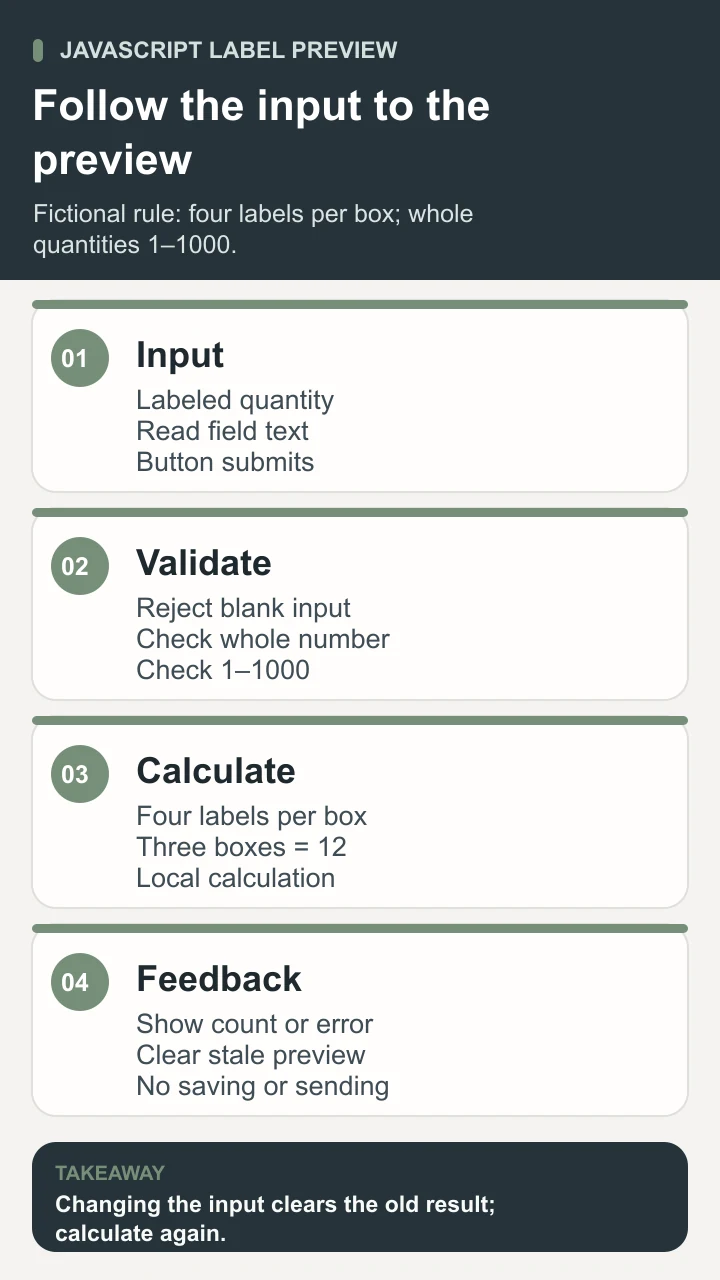
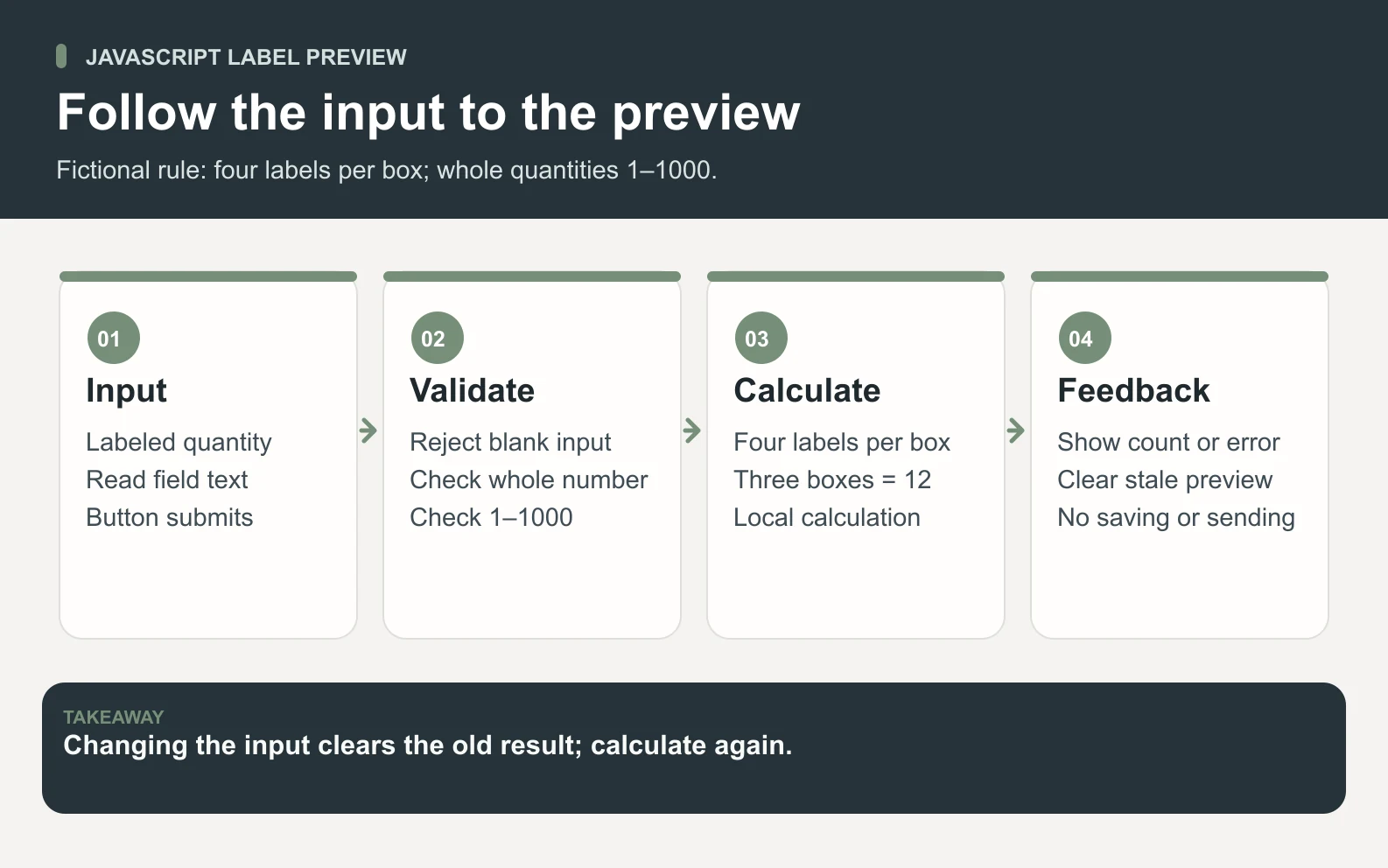
The output uses textContent to place a message into the result region. It does not interpret the message as HTML. OWASP’s DOM-based XSS guidance recommends safe text output rather than unsafe HTML insertion for untrusted text. If you later add names, comments, or API responses, preserve that boundary instead of treating arbitrary content as executable page markup.
Open the complete downloaded example locally and read the visible “Preview only” note. There is no order endpoint, no account credential, and no print command in the file. Reopening the file starts a new page state rather than retrieving saved work. Those limits are part of the example’s behavior. A label preview is still useful without implying that a real print job has been accepted.
Test values, keyboard behavior, and missing dependencies
Write expected outcomes before making the interface look finished. Use the smallest allowed input, a normal input, the largest allowed input, and values outside the rule. Repeat after changing the implementation. You are checking the contract, not collecting screenshots of the same successful case. A function can be correct while an event handler passes the wrong field value or displays an old answer.
Scroll horizontally to view all columns.
| Input or action | Expected outcome | Reason for the check |
|---|---|---|
| 1 box | 4 labels. | The lower valid boundary works. |
| 3 boxes | 12 labels. | A normal input follows the four-label rule. |
| 1000 boxes | 4000 labels. | The upper valid boundary works. |
| Blank, 0, negative, 1.5, or 1001 | A message asks for a whole number from 1 to 1000. | Missing, non-integer, and out-of-range quantities are rejected. |
| Change a quantity after calculating | The previous answer is replaced until recalculation. | An old preview is not shown as current. |
| Tab to the controls and activate the button | The same valid and invalid behavior is available. | Mouse input is not the only usable path. |
| JavaScript unavailable | The static explanation and manual four-label rule remain visible. | The page does not imply that a live calculation ran. |

Test the rendered page at a phone width, with a visible focus indicator, and with enlarged text. Check that help and error messages stay beside the relevant field and that the output does not disappear below a hidden panel. A native number control may present differently across browsers, so verify the behavior of the actual target browsers instead of assuming a familiar desktop appearance will transfer unchanged.
If the feature connects to a server later, repeat validation on that server. MDN’s form-validation guide explains why client checks can be bypassed. The browser can help someone enter a useful value, but it cannot decide that an account may place an order, trust a price, or modify another user’s record. Keep the server’s authorization and business checks separate from friendly local feedback.
For remote data, plan loading, failure, and repeated-action behavior. MDN’s Fetch guide explains that a response with an HTTP error status does not by itself reject the fetch promise; code needs to check the response status. A later network feature should show whether it is waiting, failed, or completed, and should avoid treating an old response as the answer to a newer input.
Use a short debugging path when the example fails
First establish which step failed. Is the script loaded? Did it find the intended controls? Did the event run? Did the function return the expected value? Did the page display that value in the correct result region? Checking these boundaries in order is more informative than changing several lines and hoping the next refresh produces a different result.
- 1Open the browser’s developer tools and read the first relevant error, including its file and line.
- 2Check element IDs against the script selectors; a misspelled ID can leave no matching element.
- 3Confirm that the script runs after the controls are available.
- 4Test the calculation with a known input such as three before investigating layout.
- 5Inspect the field’s actual value and type rather than relying only on what its display looks like.
- 6Reproduce the issue with one minimal sequence, then check both that sequence and a normal case after the fix.
Keep debugging observations specific. “The calculator is broken” provides little direction. “After entering 1.5 and submitting, the previous twelve-label message remains” identifies an input, an action, an actual result, and a violated rule. Include the expected message and browser when reporting it. A short reproducible case also helps a reviewer distinguish a code defect from a misunderstanding of the agreed behavior.
Do not paste secrets or private customer data into a public troubleshooting tool. The label example needs only a quantity, so fabricated values are enough to explain its behavior. If a real failure involves an authenticated API, have the authorized owner provide a redacted response shape and permission context. Frontend debugging should not become an accidental request for unrestricted production access.
Brief Space Office around one tested interaction
For this task, give Space Office the existing page or approved source files, the four-label rule, allowed quantities, exact result wording, target browsers, and acceptance cases. State whether the work is only a prototype or an approved change to an application. If access is needed, the customer chooses the repository and environment. A visual screenshot is helpful context, but it does not replace the rule or permission to deploy.
Scroll horizontally to view all columns.
| Participant | Contribution in this workflow | Human decision |
|---|---|---|
| Chromium, Frontend Implementation Specialist | Implements the labeled controls, responsive layout, and browser behavior. | Approves the design, rule, and acceptable scope of the change. |
| Carbon, Senior QA Engineer & Test Strategist | Tests valid and invalid inputs, stale feedback, keyboard use, and browser differences. | Accepts the cases and confirms that their outcomes fit the real task. |
| Hydrogen, Project Manager · Lead | Coordinates the work and reviews the evidence packet. | Resolves missing requirements and approves the final deliverable. |
| Human owner | Controls access, verifies business facts, and approves release. | Decides whether the interaction should be deployed or remain a learning example. |
Ask for the changed files, the rationale for validation choices, the observed test results, and any unresolved cases. A useful delivery note says whether the example stayed local and whether anything was saved or transmitted. Hydrogen’s review helps organize the output, while the human owner still determines whether four labels is the actual business rule and whether the implementation belongs on the real page.
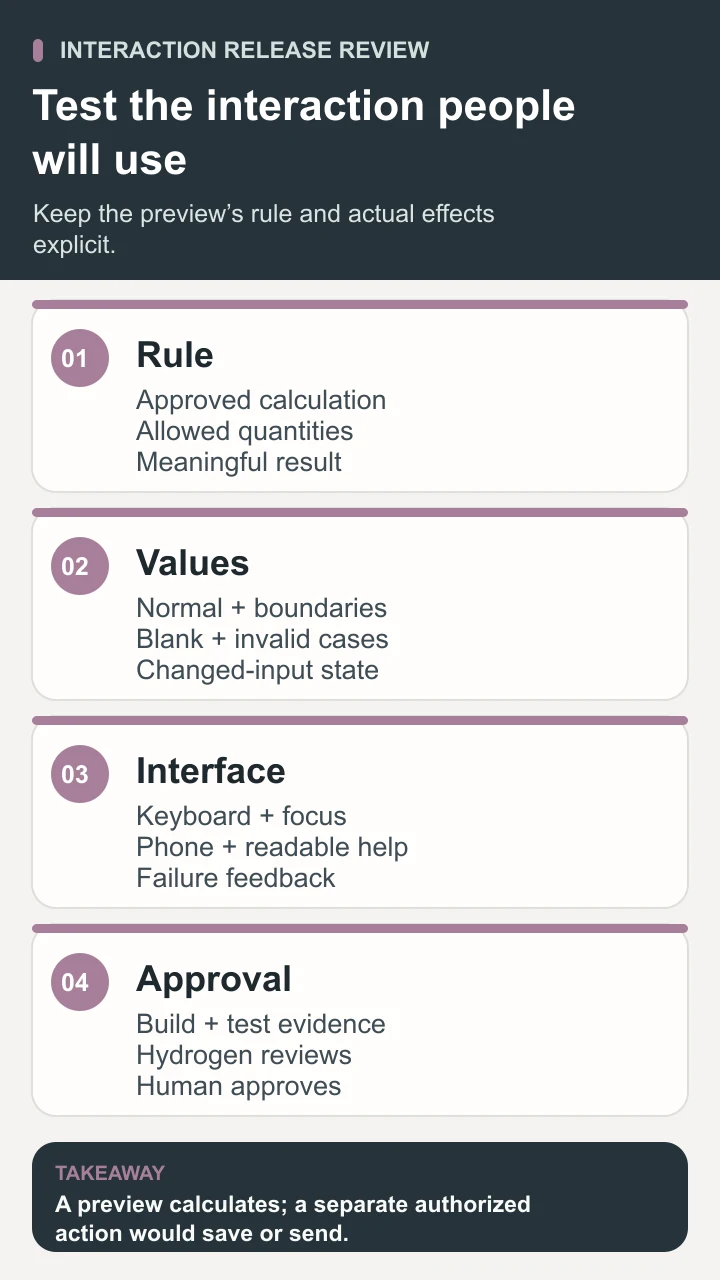
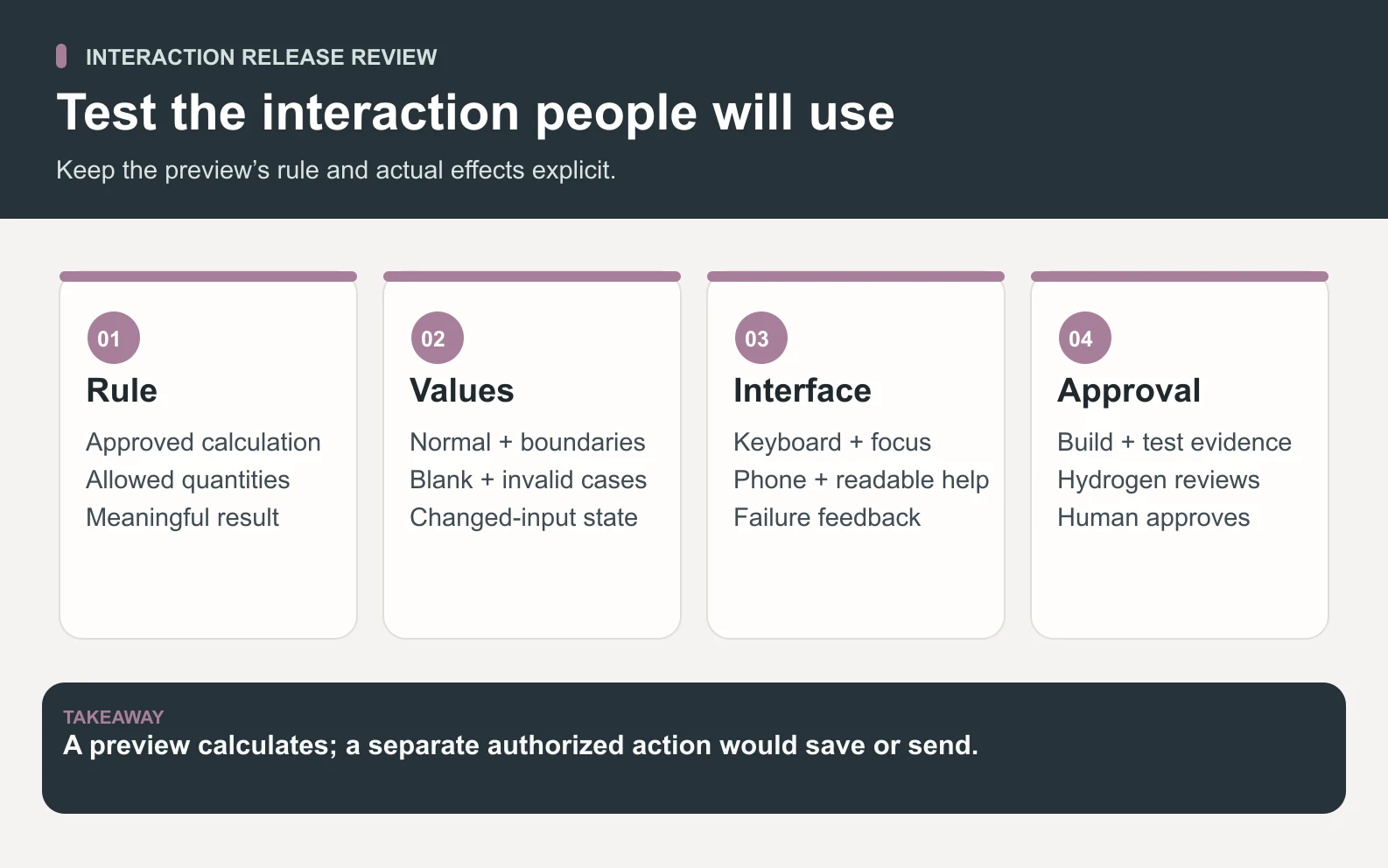
The live specialist roster and coordination guide describe those roles. For a larger build, the AI design team guide helps define the design handoff, and the development team guide covers broader implementation and QA. Expanding the task to include authentication, remote records, or deployment also expands the evidence and approvals it needs.
Keep JavaScript learning tied to observable behavior
Build one small feature, write its expected outcomes, and prove them in the browser. Once the path from input to output is clear, add one new requirement at a time. A second field, a list of items, or a remote response introduces a new question to test. Keep the original cases so the next change does not quietly break a behavior you already understood.
JavaScript is most useful when it helps a person complete a clear task and understand the result. Learn the language through small functions, deliberate data handling, readable feedback, and checks of the actual interface. The label calculator is a starting point: its value comes from a visible rule and a verifiable interaction, with a human deciding what should happen next.
Sources and review notes
Reviewed against the linked primary sources on the checked dates. Search features and citations are selected by their respective platforms; no placement is guaranteed.
- MDN: What Is JavaScript? — checked
- MDN: Grammar and Types — checked
- MDN: Functions — checked
- MDN: addEventListener — checked
- MDN: Client-side Form Validation — checked
- MDN: Using Fetch — checked
- OWASP: DOM-based XSS Prevention — checked
Frequently asked questions
What is JavaScript?
JavaScript is a programming language used for application behavior, including interactive features in web browsers. It can read permitted inputs, perform calculations, respond to events, and update a page through browser interfaces. It also runs in other supported environments. What it can access depends on that environment, the surrounding application, and the permissions supplied; the language itself does not grant access to business systems.
Is JavaScript the same as Java?
No. JavaScript and Java are different programming languages with different ecosystems. Their similar names are not evidence that a tutorial, package, or runtime for one will work with the other. For the browser example here, use the provided HTML document and JavaScript code. You do not need to install a Java development environment to run this local calculator.
Do I need a framework to learn JavaScript?
No. Ordinary browser controls and a small script are enough to learn variables, functions, conditions, events, and page updates. A framework can help structure a larger application, but it also adds conventions and tools to understand. Learn what a small interaction does before selecting a framework for a real project’s size, team, and maintenance needs.
Can JavaScript validate a business form securely?
Browser-side checks help people correct input, but they do not establish authorization or replace server-side validation. A person can bypass or alter the browser code. If the application saves a record or performs an action, its server must check the input, account permissions, and business rules. The example in this guide is a local preview and performs no such action.
How do I check AI-generated JavaScript?
Start with the requirements and a small set of expected outcomes. Read what the code accesses, saves, and sends. Test normal inputs, boundaries, missing values, changed inputs, keyboard behavior, and phone layout. Review failures against reproducible steps. A human should approve the real business rule and release; a plausible-looking interface or a successful build is not enough to prove the feature behaves correctly.