Guide
Docker: Images, Containers, and a Local Website Example
Learn Docker by tracing a tiny gallery website from source files to an image, a local running container, and an operating checklist.
By the Space Office team · Published · Updated · 16 min read
Docker is a platform for building, distributing, and running applications in containers. An image supplies a packaged filesystem and runtime defaults; a container is a running instance with its own runtime configuration. In Space Office, Tungsten can prepare container and operating work, Lithium can implement application changes, and Carbon can test behavior. Hydrogen coordinates and reviews; a human approves access, spending, and release.

Key takeaways
- Distinguish the source files, build instructions, image, running container, and persistent data.
- Start with a small local workload and a written expected response before adding services.
- Check the host address, host port, and container port separately when reviewing access.
- Rebuild an image when its packaged source changes; restarting an old container does not update that source.
- Name who owns updates, data recovery, secrets, and release approval before production use.
Download the example HTML, Dockerfile, and container review worksheet. The gallery is fictional. The commands illustrate a local static-site exercise for an approved machine with a working Docker installation; they are not a claim that a customer service has been deployed.
What Docker does and what a container is
Docker’s container introduction describes a container as an isolated process for an application component. That makes a useful starting point: a container runs a process with a particular environment, rather than representing an entire business service by itself. A website can have several components, such as a frontend, application server, and database, each with different data and operating needs.
Packaging helps a team describe what its application needs instead of relying on an undocumented collection of programs on one developer’s laptop. It does not remove every environmental difference. The host, supported operating-system and processor architecture, network settings, external services, credentials, and resource limits still matter. Portability is a property to test for the intended environments, not permission to ignore them.
A container is also different from a virtual machine. The isolation and operating-system arrangements differ, so do not interpret the word container as a promise that arbitrary untrusted code can safely run with broad host access. For this guide, the useful task is narrower: package one harmless, fictional static page and understand the boundaries around a local preview. Production hardening is a separate technical review.
Docker is one tool in a software workflow. The cloud computing guide explains service models and responsibilities; Java and Python explain application logic. A program can run without containers, and a container does not determine which cloud service or release process you should use. Choose it when a repeatable package and a clear operating model help the actual project.
Separate images, containers, and build instructions
Docker’s image guide describes an image as a package of files and configuration used to create containers. A built image is immutable; a changed application normally means creating a new image. A running container adds its own runtime state and configuration. Keeping these concepts separate prevents a common debugging mistake: inspecting a correct source file while the running process still uses an older image.
Scroll horizontally to view all columns.
| Object | Purpose in this exercise | Question to verify |
|---|---|---|
| Source files | The HTML page and Dockerfile in the learning folder. | Which exact files should enter the build? |
| Dockerfile | Instructions for building the image. | Which base image and destination path are specified? |
| Image | The packaged gallery page and web-server environment. | Which built image is the preview using? |
| Container | One running web-server instance from that image. | What name, network mapping, and runtime settings apply? |
| Volume | Persistent storage when a workload requires it. | What data must survive replacing the container? |
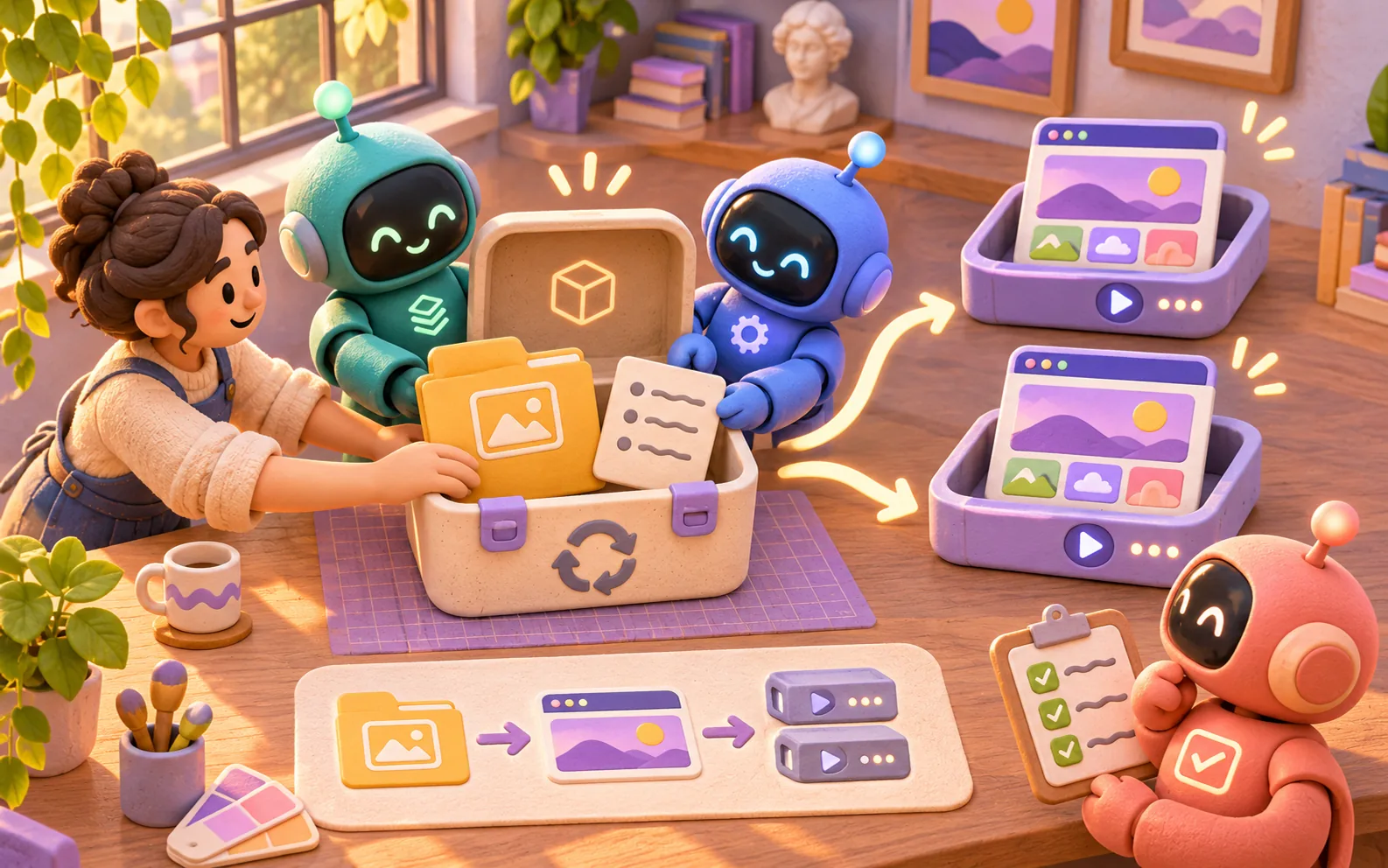
A tag is a human-readable reference, such as the local gallery-demo:v1 name used below. Tags can be moved to different image content. A digest identifies particular image content more precisely. Record what was actually built and used when reproducibility matters. A friendly version label is useful for conversation, but it is not by itself a permanent identity or a complete provenance record.
The Dockerfile overview explains instructions such as FROM and COPY. In our small file, FROM selects a base image and COPY adds one page at the location its web server serves. The build context is the set of files available to the build. Keep that learning directory small so an unrelated private export, credential file, or large asset collection does not accidentally become part of the build input.
Prepare a small static website example
The fictional gallery needs a local exhibition-preview page. Its acceptance criterion is deliberately simple: opening the local URL shows the heading “Gallery demo” and the sentence explaining that there are no bookings or payments. There is no form, database, customer account, application API, analytics integration, or transaction. This limited scope makes it easier to tell whether the packaging and port mapping are working.
<!doctype html>
<html lang="en">
<head>
  <meta charset="utf-8">
  <meta name="viewport" content="width=device-width, initial-scale=1">
  <title>Gallery demo</title>
</head>
<body>
  <main>
    <h1>Gallery demo</h1>
    <p>Fictional exhibition preview. No bookings or payments.</p>
  </main>
</body>
</html>Create a new learning folder and save the HTML as index.html, with its real extension visible. Save the second download as a file named exactly Dockerfile, without a .txt extension. Place both in the same folder. The two names and their relative location matter: the COPY instruction refers to the source file in the build context rather than searching all folders on your computer.
FROM nginx:stable-alpine
COPY index.html /usr/share/nginx/html/index.html
The NGINX container guide documents the official web-server image and content locations. The example uses the open-source nginx image, not a paid NGINX Plus subscription. The stable-alpine tag is convenient for a teaching exercise but is mutable. For an actual release, review the selected image, its supported platform, update policy, and exact version or digest under the project’s approved dependency process.
Do not add a database or a second service merely to make the demonstration look realistic. First prove the smallest response against the stated criterion. If the actual gallery later needs bookings, start a new application brief covering validation, authoritative records, privacy, failures, and acceptance tests. Those features cannot be inferred from the presence of a web server or from a page that displays correctly.
Build and run the local Docker preview
docker build -t gallery-demo:v1 .
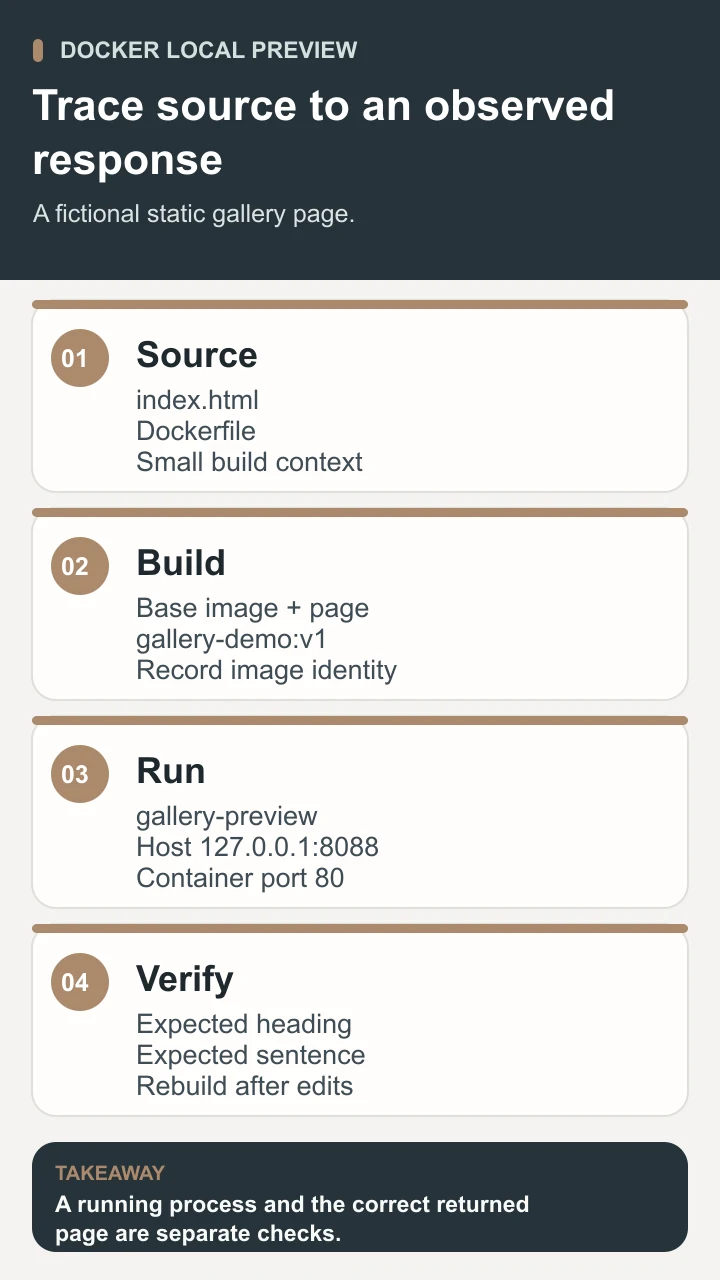
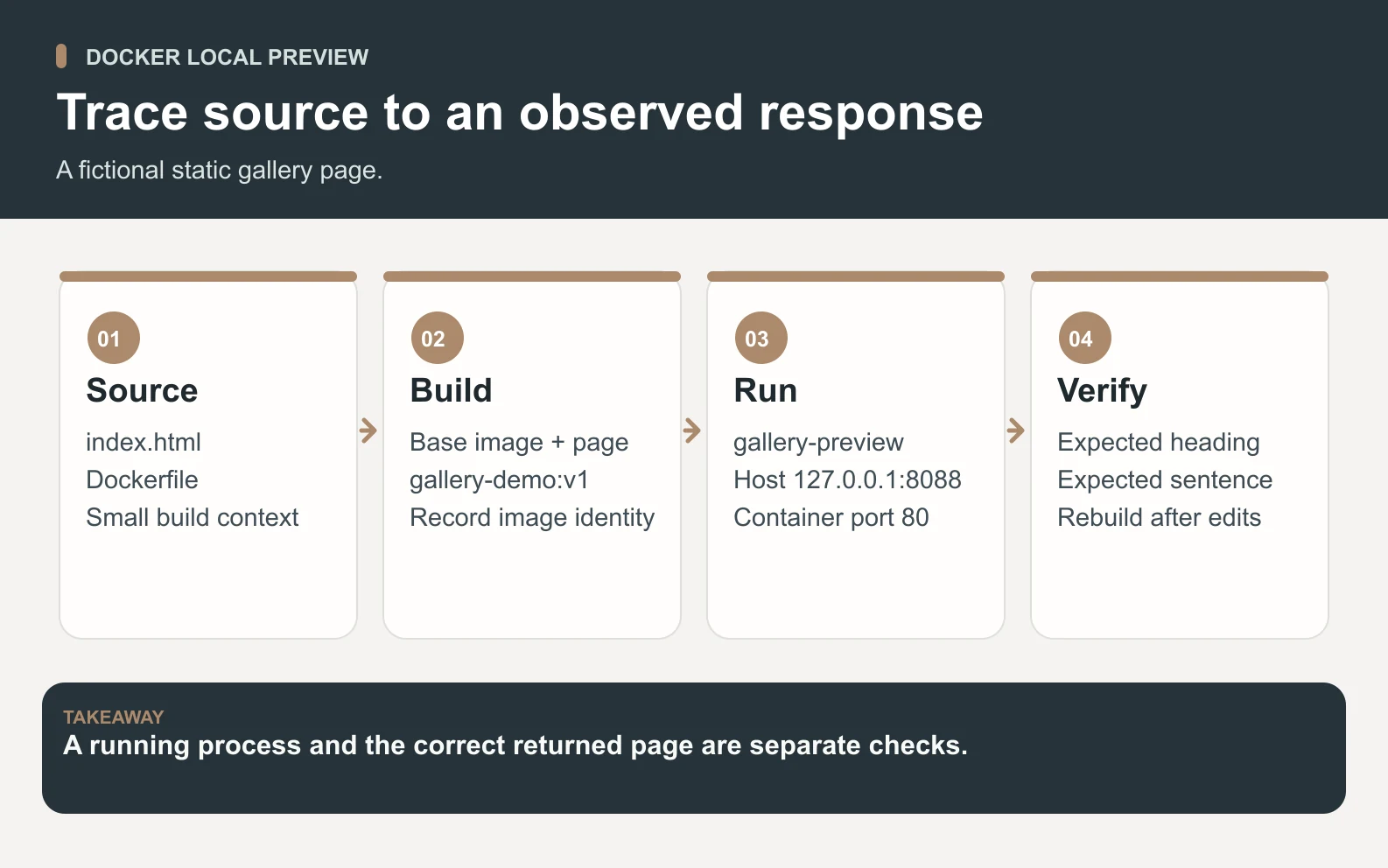
docker run --name gallery-preview --rm -d -p 127.0.0.1:8088:80 gallery-demo:v1These commands require an approved Docker installation, a running engine, and access to retrieve the base image if it is not already available. The first command builds an image from the current directory, represented by the final dot. The second starts a container from the local image. Review the commands and the current folder before running them. A successful build and a successful application response are separate checks.
The container name gallery-preview gives you a specific instance to inspect later. The detached flag lets it run in the background. The automatic-removal option removes this exercise’s container when it exits; it does not remove the local image. This example does not mount a volume or contain persistent user data. Avoid copying cleanup habits from a disposable demonstration into a stateful business service.
Docker’s port-publishing documentation explains how host addresses and ports map to a container port. Here, 127.0.0.1:8088:80 means host loopback address, host port 8088, and container port 80. Open http://127.0.0.1:8088 on that Docker host. If you use a remote engine, the relevant host is remote; do not assume that your laptop’s loopback address identifies the engine’s machine.
The published address is part of the access decision. Replacing the loopback address with a broader binding can change who can reach the service. Check the engine version, host networking and firewall behavior for the actual environment rather than treating this command as a universal access-control guarantee. A local learning preview also lacks the domain, TLS, authentication, and operating controls that a public service may require.
When finished with your own named exercise container, docker stop gallery-preview stops it; the automatic-removal setting then removes that container. Use its explicit name rather than a command that removes every container or volume. The local image remains available for review. If the name is already occupied, inspect that instance first instead of assuming it is disposable or belongs to this exercise.
Verify results and understand storage
Inspect the actual response before adding features. The browser should display the intended heading and sentence, not an old gallery page or a default server welcome screen. A process appearing in a container list proves that a process exists, while an HTTP response and content check tell you more about whether the expected service is reachable. Neither observation establishes production readiness on its own.
Scroll horizontally to view all columns.
| Observation | Likely layer to investigate | Useful evidence |
|---|---|---|
| Build cannot find index.html | File naming or build context. | Current folder, visible extensions, Dockerfile source path. |
| Client cannot connect to the engine | Tool and engine setup. | Selected context, engine status, first diagnostic message. |
| Host port is already used | Runtime port allocation. | The named process or container using that port. |
| Default or old page appears | Image identity or packaged content. | Build output, selected image, and actual returned page. |
| Edited file does not appear | Rebuild and container replacement. | A new build and a newly created instance of that image. |
Editing index.html on the host does not change the copy already packaged into an image. For this exercise, rebuild the image and create a new preview container to test the change. Restarting a container made from an older image does not automatically select a newer image with the same tag. Make the build, identity, and replacement steps visible in the review record so an old result is not mistaken for a failed source edit.

Docker’s volume documentation describes persistent storage managed separately from a container’s writable layer. This static exercise does not need a volume because its page belongs in the image and it stores no user changes. A database or upload service would require a different data plan. Merely naming a volume does not establish a backup, restore procedure, retention policy, or correct permissions.
For a stateful workload, name the authoritative records, storage location, backup process, and restore acceptance criteria before replacing or removing anything. Rehearse recovery using approved test records and compare what returns with what should have returned. Record missing data and actual recovery time. An image rollback and a data rollback are different operations; an old application image may not understand a newly changed database schema.
Plan updates and operating responsibility
Docker’s build guidance recommends practices including choosing appropriate base images, limiting build input, rebuilding, and testing. Apply those practices to the project’s needs instead of collecting configuration lines without understanding them. A production review should cover dependency provenance, updates, process privileges, resource limits, secrets, network access, health signals, and the responsible operator. The two-line teaching file intentionally does not implement that complete operating plan.
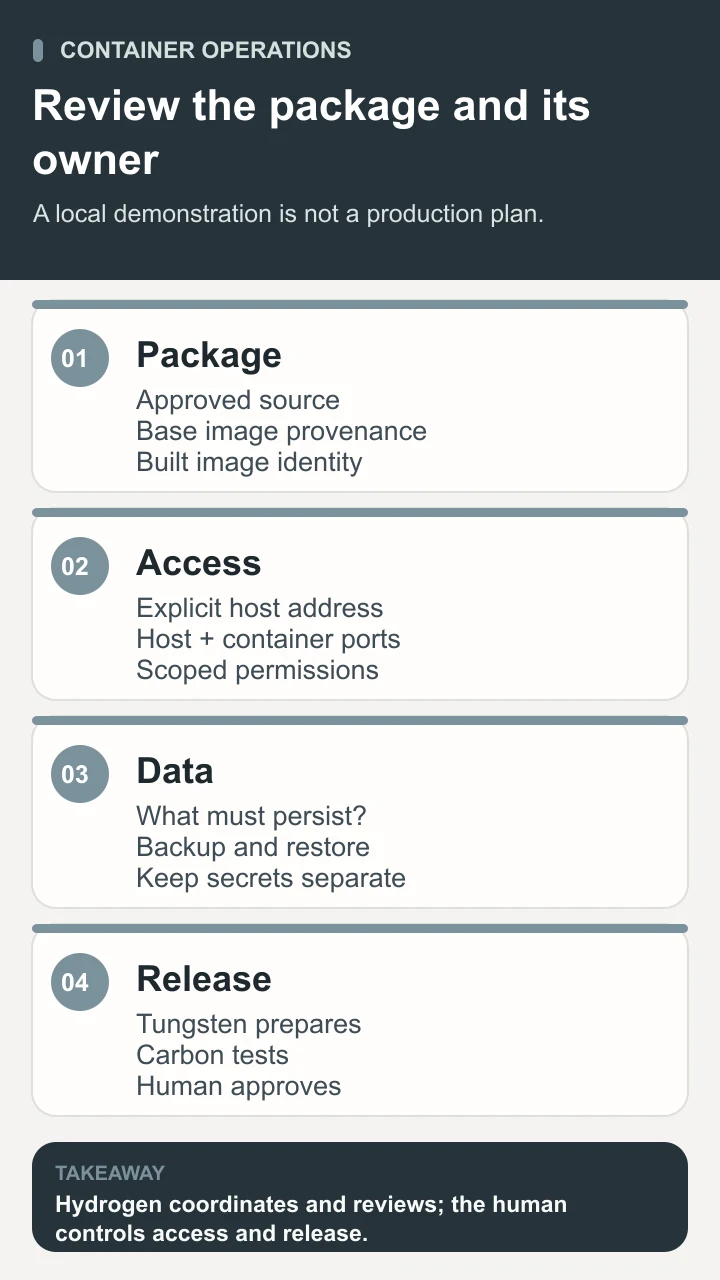
Prepare a small release record: source revision, Dockerfile, selected base-image reference, built-image identity, intended environment, configuration assumptions, expected response, and rollback steps. Keep secrets out of the image and ordinary source files; use the selected environment’s supported secret-handling mechanism. A person with the appropriate responsibility must decide which access is necessary and how it is granted. A container command does not grant that authority.
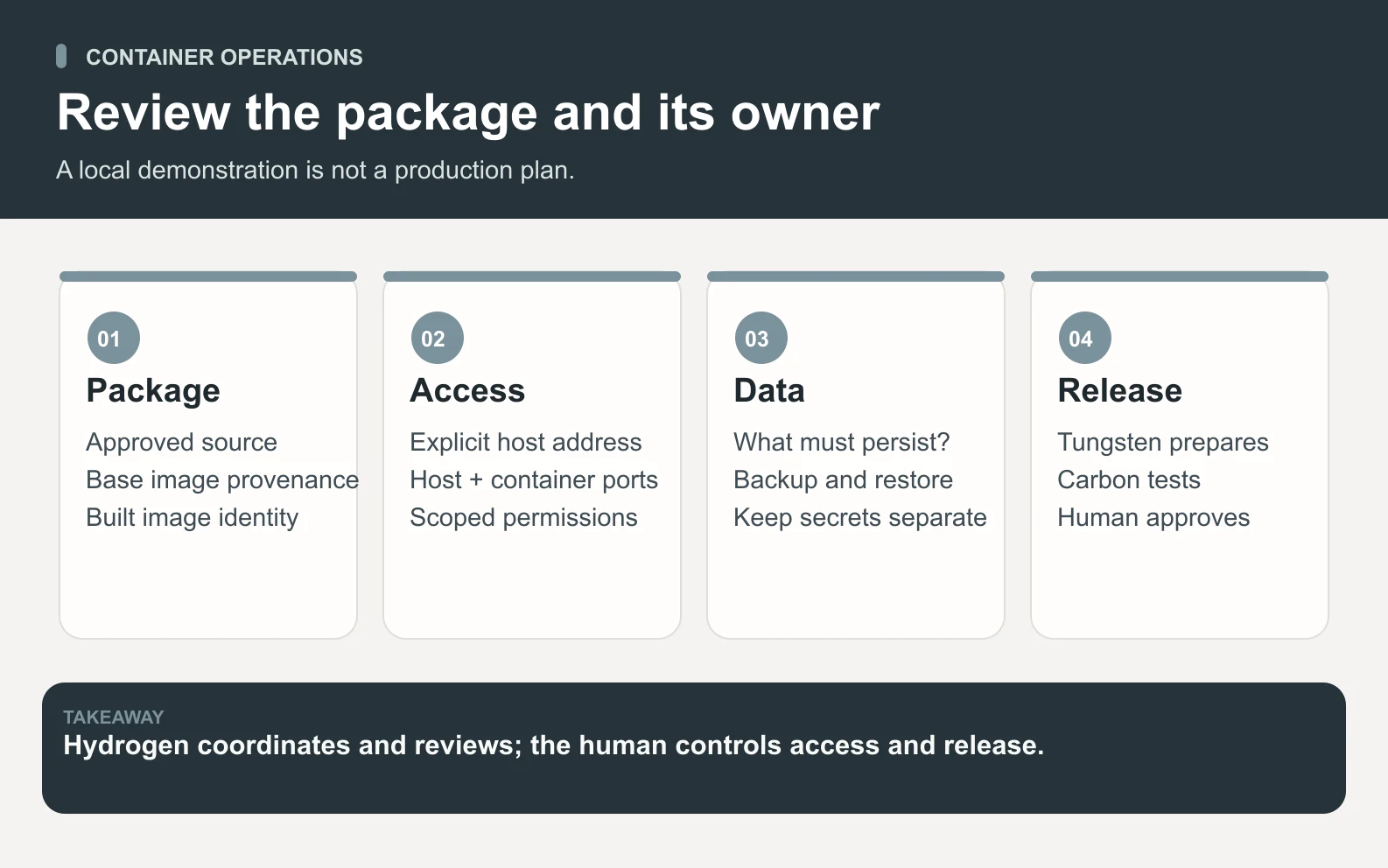
Add orchestration or multiple services only when the workload requires them. A local preview does not automatically need Kubernetes, several replicas, or a managed cluster. More components create more configuration and failure paths to operate. Keep the initial design small enough that someone can reproduce the build, identify the running version, diagnose a failed response, and explain how a change would be reversed.
Use Space Office for a reviewed container packet
A bounded assignment is a containerization and operating packet for one approved application. The customer supplies the source, current build process, supported platforms, required runtime configuration, expected response, data needs, and available environment. Tungsten can prepare the packaging, deployment and operations work. Lithium can implement application changes, Carbon can test behavior, and Hydrogen coordinates and reviews the packet against the brief.
Ask for a Dockerfile, build and run instructions, a list of assumptions, a test record, and an operating and recovery checklist. The human owner checks the evidence, approves scoped access and costs, and makes the release decision. The current agents and workflow overview help define that preparation and review process. No account creation, public exposure, purchase, or production deployment is assumed by this example.
Docker is useful when the package and the operating process are both understandable. Start with one observable response, trace it from source through an image into a named container, and verify the address, version, and storage assumptions. Expand the workload only after those checks make sense, while keeping the responsible human in control of access, persistence, and release.
Sources and review notes
Reviewed against the linked primary sources on the checked dates. Search features and citations are selected by their respective platforms; no placement is guaranteed.
- Docker: What Is a Container? — checked
- Docker: What Is an Image? — checked
- Dockerfile Overview — checked
- Docker: Port Publishing and Mapping — checked
- Docker: Volumes — checked
- Docker: Building Best Practices — checked
- NGINX: Deploying with Docker — checked
Frequently asked questions
What is Docker in simple terms?
Docker is a platform for building and running applications in containers. An image packages the files and defaults used to create a container; the container is an instance with runtime configuration and a running process. Packaging helps describe an environment, while people still own the application rules and operating decisions.
What is the difference between a Docker image and a container?
An image is the packaged content used as the basis for containers. A container is a particular instance with runtime state and settings. Changing source files does not change an existing image, and restarting a container does not automatically replace it with an instance of a newly built image.
Does the static-site example need a volume?
No. Its only page is packaged into the image, and the exercise accepts no uploads or other user data. A stateful application needs a separate storage and recovery plan. A persistent volume and a tested backup solve different parts of that problem.
Does a working container mean my service is ready for production?
No. A local response proves only the behavior you observed in that setup. A production release still needs appropriate image and dependency review, configuration, access controls, resource and failure planning, monitoring, recovery, and approval for the intended environment. The teaching file is deliberately smaller than that operating plan.
How can Space Office help with Docker work?
With approved application context and scoped access, Tungsten can prepare packaging and operations work, Lithium can implement changes, and Carbon can test expected behavior. Hydrogen coordinates and reviews. A human approves the evidence, access, spending, and release. The example does not promise automatic deployment, security, or availability.